Wednesday, 24 September 2014

How to change Facebook theme color: Change Facebook theme

Facebook default color and theme set in all younger to older people. So in office school you can’t open, it’s hence that from your PC any one can gauss you are on Facebook. For long time Facebook user always hate this screen color and design, here is the trick to change theme and color in your Facebook profile. In this tips you don’t need hack or unofficial activity.

Facebook tip: How to see all sent friend request from your account.

Change Facebook theme and color in own FB profile

Step 1
Using plugins you can make Facebook profile color and theme as you wish, means customized color. No one can identify your Facebook open in your browser.

Go: Change Facebook color plugins in your chrome browser. Then tap on add to chrome button.
Open facebook color and theme change plugins
Open facebook color and theme change plugin
Step 2
In your next step, allow with add button, Tap on add
Add plugins in your chrome browser
Step 3
Click on Facebook icon from left browser screen of your browser. You will show below screen for to choose color.

Step 4
Enable - Show bookmarked pages tab in your browser, - Crtl + Shift + B
Using step 3 you can select color for your Facebook page – profile.
After selecting color tap on arrow and drag this arrow to the bookmarked tab in your browser.
Set color as you wish
Drag and leave on bookmark page
Step 5
After that you are done, Open Facebook profile. You can see like in below screen.
That’s sit; you can see and enjoy changed color Facebook profile.
Open your facebook account - Not display color and theme
Tap on fb to apply color customized

For more see below video tutorial,


For Mozilla browser, please proceed with below steps,

Note: above step for only in chrome browser.

Step 1:
First open Mozilla plugins in your Mozilla browser,
Go to the: install and add Greasemonkey add-on then restart your plugins

Step 2:
Now, Tap on install from top right corner of the Mozilla browser,

Step 3:
Go to facebook.com, Inside Facebook go to Tools > Greasemonkey > Userscript > Commands > Customized Facebook colors

Step 4:
At the end your can set customized Facebook color by tapping in set

Top best Facebook cover photos for your profile and pages, Download any Facebook video without downloader.

Don’t miss to share how looks your profile in this way: To set Facebook color and Theme in official way, any problem and suggestion then comment in below we will glad to help you!

Labels: , , , ,

Saturday, 9 August 2014

How to see all sent Facebook friend request in Facebook

The world’s largest social network Facebook have many strict rule and regulation on sent friend request or tolerate unknown people by sending friend request. If you are sending more facebook friend request to number of unknown people to increase friends in your account. From this list sent by you, some doesn’t accept your request sent by your from your account. at that time Facebook algorithm work and might be your account has been banned for this reason, you sent more request to unknown people that’s all are pending. For the prevention, block you account due to reason of sent multiple friend request and most of the pending now.

Useful: How to stop all notification in your inbox.

So you have to delete all Facebook friend request sent by you in past from your account.

Here’s are the steps on how to remove or see all Facebook friend request which is sent you in past

Step 1: Go facebook.com

Step 2: Login with your username/ Email/ Mobile number and password.

Step 3: After successfully logged in your account.

Step 4: From the top bar in your account, Tap “friend request option” icon. You can see all friend requests coming from your friends.


See Sent facebook friend requests
Step 5: Click on “See all” from bottom menu.

Step 6: Your next page looks link in below, Tap on “View Sent request” link.
View Sent friend Request in Facebook

Step 7: After tap on “View sent request”. Your screen given in below.
View sent friends request sent by you - not accepted by your friends

Step 8: From this list, sent friend request you can cancel one by one.
Cancel pending friend request in facebook account

Useful: How to download Facebook video without IDM or any external apps?

Using above Facebook tips, you can also cancel or delete all Facebook friend requests, which is pending till now or not accepted by your friends.

Don’t miss: Awesome Facebook cover photo for your profile and page in 2014.

Make your Facebook secure: hide Facebook profile from unknown persona.

Don’t miss to comment this pretty and simply trick on how to view all sent friend request (Facebook) from your account.

Labels: , , , , ,

Wednesday, 2 July 2014

How to stop and turn off Facebook notification email in Gmail, Yahoo and Bing

Today’s largest social networking Facebook, Most of the people are using Facebook for business, Social networking, Business promotion and chatting with friends, and family over worldwide. So when ever new updates are comes in your account as a notification. Notification mail sent on register email iD in your Facebook account. This mail auto set by default is yes. Now you have to disable this option using below steps, to stop or disable Facebook mail comes in your mail account.

Useful: How to hide mutual friend from Facebook side bar in Facebook profile.
Ways to increase Facebook page likes
Download any Facebook video without any software, Directly in your browser
How to see sent Facebook friend request and cancel friend request?

Steps to stop mail notification in Facebook account


Step 1

Go facebook.com, Login with your email or password.

Step 2

Click on setting gear icon at top right corner of your desktop screen. Given in below,
Select Account settings option given there (Dynamic popup)
stop Facebook notification mail

Step 3

Now click on notification tab in the account settings.
Account Settings > Notifications
Click notification under setting to stop Facebook mail

Step 4

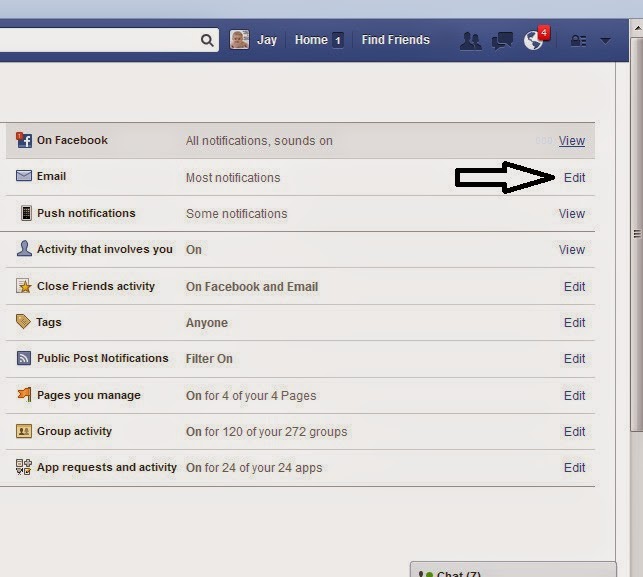
After that, Next screen will be what types of notification you want to stop forever. Like post, group, friend request.
Now click on Email with edit link in front of this, (Given in below image)
set email notification settings

Step 5

After click on edit, you can see all notification types with radio options. To stop or disable email notification you have to check third option given in below figure.
Select mail option for Account security and privacy
you want more guide on this tutorial or any problem comment in below, we will glad to assist you.

Labels: , , , ,

Tuesday, 1 July 2014

How to turn off Facebook notification for particular Facebook game notification or group or pages

Friends, you are very irritant on Facebook notification, but you can stop notifications that are coming from game request, New post on page and groups. First time I very angry from these types of request coming from our friends as a notification. Notification gives suggestion to participate in this game to get more coin or points in game. After follow the below step your must stop all unwanted and unnecessary request coming from unknown or friends profile.

Useful: How to hide mutual friend from Facebook side bar in Facebook profile.
              Ways to increase Facebook page likes

              Download any Facebook video without any software, Directly in your browser

How to see sent Facebook friend request and cancel friend request?

Steps to stop notification in Facebook coming from game updates, New post on pages and group

Step 1

To stop notification those are coming on continuously time. To stop particular notification you have to in front of the notification in same category, and click on cross button that will be show when you hover there.

Through the single click you can stop all the same categories notification for all time
That’s give in below,
In below screen you can stop all notification that’s coming from howtoisolve.com page.

Press Stop button after click on cross button
Step 2

After click on “x” button, ask for turn of as double verification.
Click on “Turn Off” otherwise click on “Keep on”.
Stop notification click on Turn Off given in below screen.
Stop facebook notification for all time coming from game and post, pages

Its done, From this tricks you can stop all particular notification of game, Apps, Post, Group and pages updates notifications.

More over friends are sending notification for to join group and page. Now a days Facebook notifications are coming in double number through the candy crash and zynga poker game.
To know more on Facebook tips and tricks state you on with Us, Through connect our social page, Facebook, Google+ and twitter.

Mute Facebook notification and chat sound from your Facebook profile
How to block Facebook [social sites] in your laptop or desktop browser
How to make scanned photo without scanner in your mobile

Don’t miss to share this very useful post with your friends. You have any confusion and advance tips comment in below comment box.

Labels: , , , , ,

Friday, 13 June 2014

Auto tweet on twitter when posting on Facebook page or group and profile: How to link FB to twitter

Auto tweet on twitter automatically, when your are sharing any post on Facebook profile, page or group. This technique should be very easy for SEO expert. Because you don’t need to open your twitter account and tweet your post in there. To share also in twitter you have to share only in Facebook account. For that you have to give right permission for particular Facebook page, group, and profile.
Here I am sharing all the steps for auto tweet on twitter when you are posting on Facebook account.

Useful: Best Facebook cover photo to get more like and friends.

Step to synchronize Facebook account and twitter account for auto tweet

Here I explaining on one Facebook page, When I share some links, photos, Text or images on that Facebook page. Synchronized twitter account automatically tweet for that post in your twitter account.
Step 1
Login you Facebook account and click on below link,
Go: https://www.facebook.com/twitter/
Connect facebook page and profile to twitter
Connect Facebook page and profile to twitter
Now you will show your Facebook profile, created your Facebook page, created group in this screen,
See in below image.
Connect facebook page to twitter account

Select Facebook page, group to link with twitter account, you will see twitter login
Accesp twitter app for auto sharing post on twitter


Logging in twitter account and click on authorized app button, now wait for 5 to 10 second (on your internet speed). You next screen for select post type which you want to auto share on twitter account.
processing to synchronize Facebook page to twitter account
Click on Save Changes
saved changes for sharing option on twitter
facebook page sharing rights on twitter account
Facebook page sharing rights on twitter account
After saved you can see user name of connect twitter account in front of page,
Now you are done. And See all the auto tweet in twitter account as of facebook post,

Auto tweet on twitter from new post in facebook


Related search for this post,
Auto tweet in twitter for Facebook page post on twitter
Link Facebook to twitter account
Auto tweet in twitter

Don’t miss: Way to create short URL for your blog/website.
To get more free articles on Facebook, How to guide, Microsoft tutorial and Google.


Don’t miss to share any new suggestion in below comment box. any problem then comment in below, we will be glad to help you!
Thanks for sharing and visiting

Labels: , , , , , , ,

Wednesday, 26 February 2014

How To See List Of Friends Whenever Unfriend You By Other Friend On Facebook

Friends, you are on Facebook than you must try to find out “Who is unfriend me of Facebook”, “List of friends who unfriend me”, “Unfriend by other” on Facebook. But official facebook never helps to know this solution. But you can know easily in step by step guide in given below.
How to know who unfriend me-unfriend-finder
Some of the time you fill some of friends are missing from my friends list. At that time you can mark who is that guise don’t want to become friend on Facebook. Or some of tine your friend unexpected unfriend to you.

Useful;
How to update google chrome for any error, disable unwanted ads, and Crash solution?

Step to find friend who unfriend you.

Step 1
Go to Google chrome plug-in extension “Unfriend Notify For Facebook”.

Step 2
Add Unfriend notify plug-in in your google chrome browser by clicking install button at top right of the screen. After wait minute it will automatically con fig with your google chrome browser.
Than you can check friends who unfriend you from your Facebook login under your friend list see in below screen.
Unfriend Notifiy in your facebook profile- Find friend who unfriend You.

Step 3
You can disable or enable and delete this plug-in from the below path. past below URL in new google chrome tab
chrome://extensions/
OR
Tools > Extension

I hope you will find the perfect solutions with step by step guide in how to know friends list in your Facebook account who unfriend you in his/her account.

Labels: , , , ,

Friday, 7 February 2014

How To Block Facebook Site On My Pc/Desktop Or Laptop? Stop Facebook Access On My Personal Computer

Many of friends and Parent who are tolerated from Facebook social sites. But you never stop Facebook access from his/her friends, Children and unknown person. So I try to help from this problem like “How to stop Facebook in my personal PC Or Laptop”, “Block face.com site from my browser”, “Block accessing Facebook in google chrome”, “Block accessing Facebook in Mozilla Firefox”, ”Facebook block access plug-in”.
Block Facebook Access from Personal Computer

Steps to Block Facebook in Mozilla browser

Step 1: Go Facebook add-ons professional link: Facebook access block in Mozilla Firefox click here
Note: Open above link in Mozilla Firefox.
Step 2: Click on Download Now button and install in your Mozilla Firefox browser.

Steps to Block Facebook in Google Chrome browser

Step 1: Go Facebook add-ons professional link: Facebook access block in Mozilla Firefox click here

Note: Above Ad ons lick open in google chrome browser

Step 2: Click on Download Now button and install in your Google chrome browser.

Useful: How to check list of sent Facebook friend request from your account?

Friends, you will find the perfect solution to your search query “Facebook Stop on my PC, Block Facebook Site on my Laptop”. So don’t miss to share this post with helping people.

Labels: , , , ,

Monday, 3 February 2014

List Of Sent Friend Request On Facebook: See All Pending Request To Friends From My Account

Once you are sending multiple known/unknown friend requests at a time. At that time you don’t know how many accepted by friends. But Facebook gives option with double verification for security purpose.

If you want see all request than follow the below simple steps one by one. I tried to solve your problem “See all sent request from your account”. Facebook gives no option in block your account on the basis of more request sent to list of unknown friends. To prevent from bloc your account you have to verify how many not accepted by other friend request are pending. Using this Facebook tips you can know name person on Facebook.
See All sent Friend Request From my Facebook Account

Steps to see sent friends request on Facebook from your account


Step 1
Go setting under the top left round see in below for more, and click on Download a copy of your Facebook data.
See All sent Friend Request From my Facebook Account 1

Step 2
After step 2 your screen look like in below, Press “Start My Archive”.
See All sent Friend Request From my Facebook Account 2
See All sent Friend Request From my Facebook Account 2 - 2
See All sent Friend Request From my Facebook Account 2 - 3

Step 3
After steps 2, verification mail has been sent to your register email id. Through this verification mail you can download all the data from the staring to present time.
Email link works for short of time limit, after such time it will be not work. That same procedure you have been repeat.
See All sent Friend Request From my Facebook Account 3

Step 4
After step 3, Your page is in below with green button “Download Archive”.
See All sent Friend Request From my Facebook Account 4

Step 5
After Step 4, You have to enter current Facebook password in verification box. After successful verification download automatically start. Downloaded file is in ZIP folder.
See All sent Friend Request From my Facebook Account 5
Step 6
Keep safe place in your drive and Extract ZIP file from there. In this extracted file you can see some folder and index file.
See All sent Friend Request From my Facebook Account 6

Step 7
Click on index file. Index.html file opened in browser automatically. Otherwise right clicking you can open in any browser.

Step 8
You can see all the data “Photos”, “Video”, “Chat Message”, “and Friends Category”.

Menu Of You account data

Step 9
Click on Friends, you will see all friends which is categorized with Sent request friends, Friends, Blocked Friends, Pending Request.
Sent Friend Request Data

Save your account from block by Facebook: Cancel all sent/pending requests at a time.

After follow the above steps you can see Sent friend Requests, Active friends, Deleted Friends, Blocked friends lists.
How to cancel Facebook friend request
You can also refer : How to cancel sent friend request from your account?

Now just copy name from sent friends requests one by one and past in find friends search from your account. Than cancel all friends request one by one.
See the below screen to cancel friend request

Related Search:
How to know sent friend requests in Facebook? How to check sent friend request in Facebook? How to check pending friend request in fb? How to take all Facebook data? View all pending request on Facebook.

Don’t miss to share this article with your friends,


Labels: , , , , , ,

How To Cancel Friend Request In FB Or Facebook: Delete Sent Facebook Friend’s Request

My friends, newbie on Facebook always find query on “How to cancel friend request after sent to friend”, “Delete sent friend request”, “get beck sent friend request to other or unknown friends”.
All questions have a simple solution please move in your account through the below simple guide step by step.
How to cancel Facebook friend request

Why we have to know? : Cancel Facebook friend request

You are finding the friends from Facebook search box. You will get list (thousands) of friends in a raw on same name and place. That time you might be sent wrong friends request to unknown person accidently.

Step to cancel or delete sent Facebook friend request

You can cancel friend request using two methods on two different scenarios. 1) At the sending time. 2) After sent friends request (after some time)

Step 1,
You can cancel/delete Facebook request at the sending time see in below image
How to cancel Facebook friend request Step 1
Step 2,
You already sent friends request
After sending friends request, you want to cancel/Delete friend request just go on his/her profile that you want to delete or cancel friend request. Click under Friend Request Sent > Cancel Request
More see below snap,
How to cancel Facebook friend request Step 2
I hope you solved your cancel Facebook friend request tips using above snap. For more tips on interesting topic subscribe our daily article in your mailbox.

Other trading on same topic, Don’t miss to share this post:


Labels: , , ,

Friday, 31 January 2014

Hide Facebook Photos From Public Or Unknown Friends In Your Timeline: Step By Step Guide

Facebook one of top 1 listed social networking site for connecting people over the world wide. But some of the time it will throw negative impact using Facebook as a shocking activity. Most of the Facebook profile is genuine but 10% of Facebook profiles are dummy and Facebook always trying to stop this type of activity by its own security validation (Mail or mobile). Now you have to save to this 10% Facebook profile which entered in your account by using the Photos from your own timeline. You can hide photos
Hide facebook photos from timeline
Hide Facebook photos from timeline

Hide Facebook photos from unknown friends or Public

Step by Step guide remove or Hide photos from your timeline

Step 1:
Just go on your Facebook timeline, when you are trying to hide photos.

Step 2:
Then move on photos Facebook widget from left pan of Facebook timeline, and then click on upper left corner of Facebook photos where edit options are available. See below image,
Hide photos from timeline - Facebook Profile

Step 3:
Now your next screen will shown below, there you have to set your privacy setting to hide photos which are visible to all in your Facebook profile timeline.
    1. At the left side select photo category
    2. Set privacy for particular photos in those categories.
Hide photos from timeline - Facebook Profile

Step 4
In step 3 you can hide or chow photos in your time line but you can’t set visibility privacy for friends, or friends of friends, and for all.

See below image you can see how to set it,
Hide photos from timeline - Facebook Profile

I hope you will find the perfect solution of your below search, like my FB page and connect with Us.
Hide Facebook photos, How to disable photos from friends in my timeline, How to hide all photos from unknown friends, My timeline photos should not show any other people or apart from my Facebook group. Facebook photo setting privacy.

You can share this article on social sites by below sharing button.

Labels: , , , , ,

Monday, 27 January 2014

Facebook Ad: Promote Your Business on Facebook with First Free Step, Create free Facebook ad

Facebook ad gives professional business advisement for small to large firm or company, private company in any sector like software, chemical, art product, medicine product, pharmacy based. Till that days over 13 millions online business developed and connected over the word only through the Facebook social site. This number is increasing day by day. You can meet your great business partner through the Facebook business advertisement program without any hidden charges, terms and conditions.

Facebook advertisement - Free Facebook ad program

So let’s Go on Facebook business page and register you with correct business details. Facebook expert will call back to you and explain about improvement in your business planning and how to create Facebook advertisement to acquire accurate progress in your business.

Link for submit your business details on Facebook

If you want this free service that Facebook gives $50 credit for first registration that means Facebook gives own experience for first 30 days in free of cost.

Search for this post:

Facebook for business, How to use Facebook for business, How to create free ad on Facebook, How to get correct client for business using Facebook, How to use Facebook advertisement credit in Facebook ad?

Useful Facebook tutorial

All the best For best Experience with Facebook,
Facebook Advertisement Program!!


Labels: , , , ,

Friday, 24 January 2014

Hide Mutual Friends On Facebook Timeline | Disable All Friends To Other In My Facebook Account Profile

Many of my friends always find the query regarding “How to disable or hide my Facebook friend on my timeline”,”remove showing friends list to other”, “steps to hide personal friends face from my timeline”.
You can set it by privacy option given by Facebook. Using this option you can hide all friends list with face but your friends can see only mutual friends. That means common friends between you and your friends. You can also hide mutual friends also.

Benefits to hide friends list from your Facebook timeline profile

After setting this option no one can see your personal friends which are not in his/her profile. But your friends or anyone can see only mutual friends.
Facebook giving Facebook friends option visible to globally by default but you can set own privacy regarding hide Facebook timeline friends visible to who.

Steps to hide friends from Facebook timeline

1. Go your profile timeline

2. Move in below and go on Facebook friends list at right sidebar. At the top corner of Facebook friends list you can see option to set privacy option. See in below
hide facebook friends timeline or mutual friends
hide Facebook friends timeline or mutual friends

3. By clicking on “Edit Privacy” you can see the popup windows to select who can see my friends list.

4. And select “Only Me”. Now your job is done then never can see your Facebook profile friends.
hide facebook friends timeline or mutual friends 2
hide Facebook friends timeline or mutual friends 2
5. Done

Search for this post:
Hide Facebook friend, Remove Facebook friend from Facebook friend timeline list, disable Facebook friends.

You will find the perfect solution. So don’t miss to share this useful article with your friends. You can also subscribe our daily techno tips update through the mail.

Labels: , , , ,

Thursday, 21 November 2013

How To Logout Opened Facebook Account On Remote Computer Or Device

The most popular social networking site facebook now give option to logout you facebook account which is opened in remote computer, Laptop and mobile then you can logout all the account at a time from the one place.
If you account is hacked by other people and creating a unwanted activity the you can check you remote location with geographic area for the session also.
Here I tried to solve your problem with screen shots and video tutorial in below. If you like this post then share with your friends and family with helping tasks on google+, Facebook and twitter.

See the below video for logout opting in facebook using remote computer.


Steps to Logout opened Facebook account on remote computer or device

1. Login facebook account
2. Privacy setting
Logout facebook account on remote computer or mobile
Logout facebook account on remote computer or mobile 1

4. Security
Logout facebook account on remote computer or mobile
Logout facebook account on remote computer or mobile 1
5. Active session (Last option)
Logout facebook account on remote computer or mobile
Logout facebook account on remote computer or mobile 1
Logout facebook account on remote computer or mobile
Logout facebook account on remote computer or mobile 1
Edit this option to show currently opened account my miss Close apart from the current login session.

If you find your account on other place then change your password and keep yourself safe.

Incoming search for this post may be:
  • How to logout my facebook account on other computer?
  • How to logout all facebook account using remote computer?
  • How to signout my fecebook account session on mobile?
  • How to check my facebook account open on other device?
  • How to check my facebook account open on mobile, Computer and laptop?
  • How to know my facebook account open on other device?


Dear friends if you have any problem then comment in below comment box. And don’t miss to like my facebook page for more updates.

Labels: , , , , , ,